
Goal #
Create an event trigger and publish a layout when an incident or external event occurs.
When to Use This #
Use this guide when content should appear because something happened, such as:
- machine stopped
- quality issue detected
- emergency notice
- supervisor intervention
- Or even operator motivation
Step 1: Create the Event Layout #
- Create the layout that should appear during the event.
- Save it.
When building the event layout:
- design for a 16:9 landscape screen
- keep the content readable at a glance
Step 2: Create the Event Trigger #
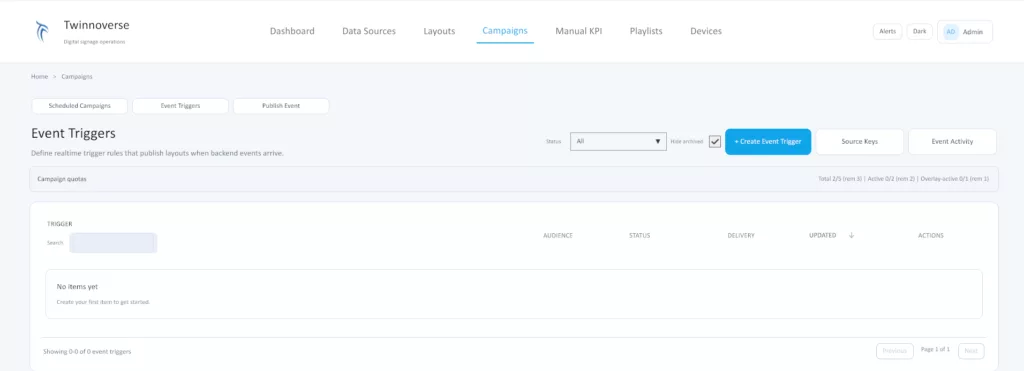
- Open Campaigns -> Event Triggers.
- Click Create Event Trigger.
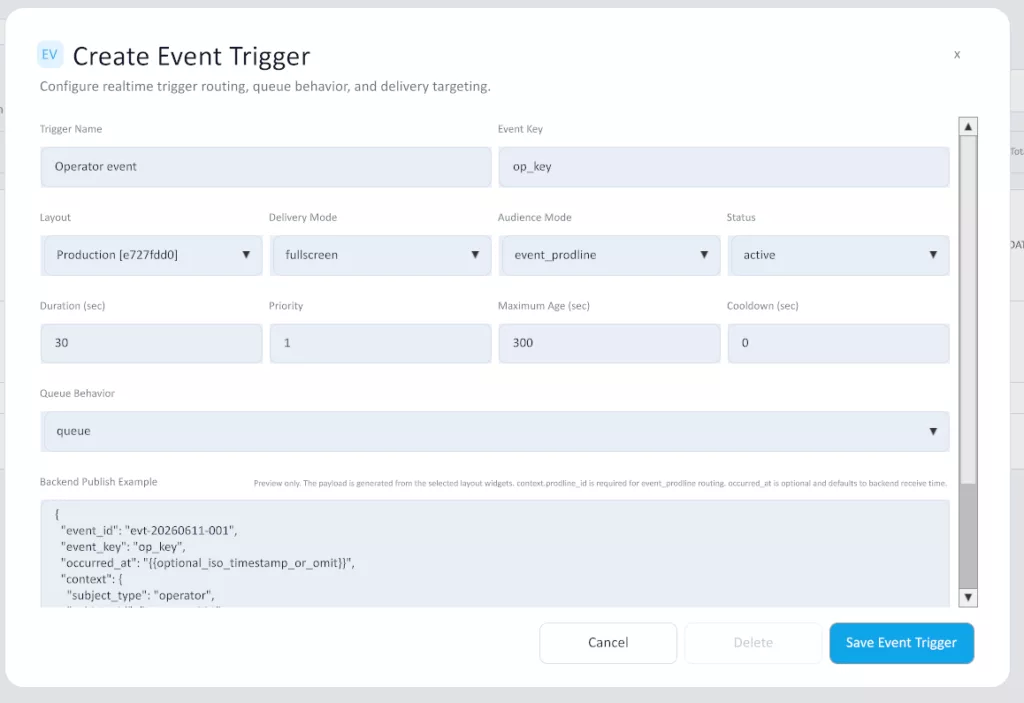
- Enter the trigger name.
- Enter the event key.
- Select the layout.
- Choose the delivery mode.
- Set duration, priority, and status.
Step 3: Choose the Audience #
Choose one audience mode:
event_prodlineall_devicesselected_devices
For production-line-specific incidents, use event_prodline.
Step 4: Activate the Trigger #
Save the trigger and set it to active.
Step 5: Test with Manual Publish #
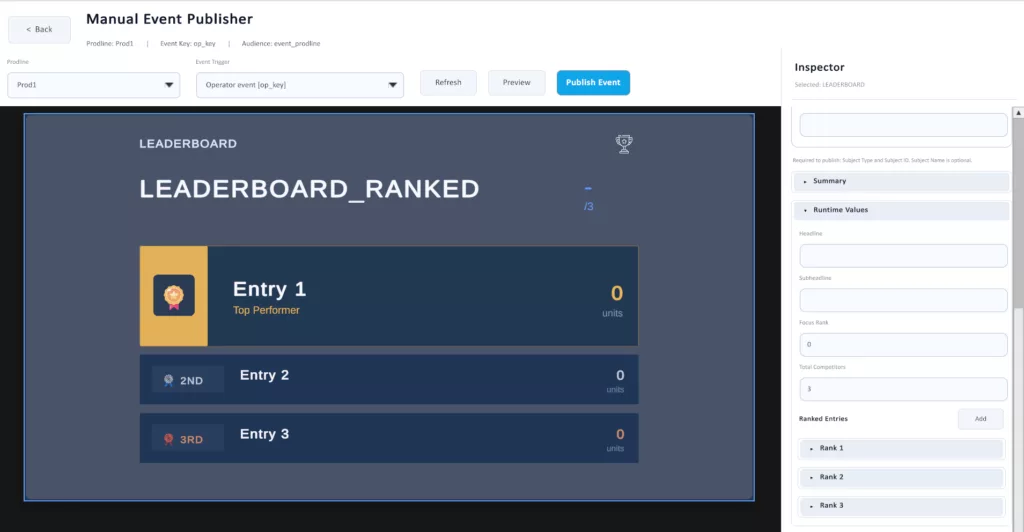
- Open Campaigns -> Publish Event.
- Select the active event trigger.
- Select the production line if needed.
- Fill the Subject ID and Subject Name
- Enter the runtime payload values in the preview.
- Click Publish Event.
Step 6: Verify Device Behavior #
Check that:
- the event layout appears on the correct TVs
- fullscreen events replace normal playback temporarily
- overlay events appear above normal playback
- playback returns to normal after the event finishes
Step 7: Connect External Publishing Later #
After the manual test works, your backend or automation can publish the same event by using:
- the same event key
- the same layout-driven payload structure
- the proper auth token


