This guide explains how to bind physical TV devices to your Twinnoverse organization, manage their lifecycle, and monitor their health.
1. What Is a Device? #
A device is a physical screen (TV, monitor, or display) running the Twinnoverse Reader app. Each device:
- Has a unique device ID in the system
- Stores a device token locally for secure communication
- Is assigned to one playlist at a time
- Reports heartbeat and data-fetch status to the cloud
2. Add a New Device (Claim Flow) #
Step-by-Step #
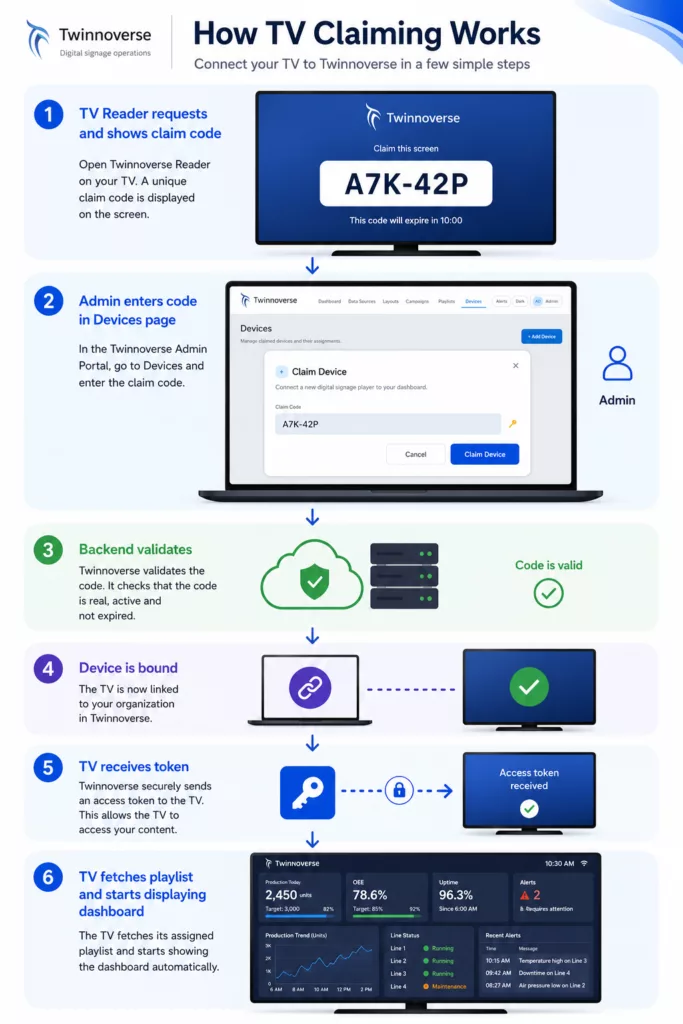
- Go to Devices in the left navigation
- Click Add Device
- On your physical TV running the Twinnoverse Reader app:
- The app shows a claim screen
- The TV generates or requests a claim code
- In the admin portal:
- enter that claim code in the device claim field
- save or approve the device
- The TV automatically:
- Registers itself with the backend
- Receives a secure device token
- Starts its first bootstrap to fetch assigned playlist/layout
- Back in the admin portal, the device now appears with status Online ✅
What Happens Behind the Scenes #
3. Device Status & Health Indicators #
Each device in the list shows:
| Status | Icon | Meaning |
|---|---|---|
| Online | 🟢 Green | Connected and reporting normally |
| Stale | 🟡 Yellow | Not seen recently (may be offline temporarily) |
| Offline | 🔴 Red | Disconnected for an extended period |
| Data Error | ⚠️ Orange | Device is online but data fetch is failing |
4. Device Actions #
Each device row offers these actions:
👁️ Preview #
See what the TV is currently displaying — directly in your browser. The preview uses the same rendering engine as the real TV, so what you see is what the device should be showing.
Note: Preview shows the intended display content, but it does not guarantee the physical panel is online or showing those pixels right now.
🔄 Reclaim #
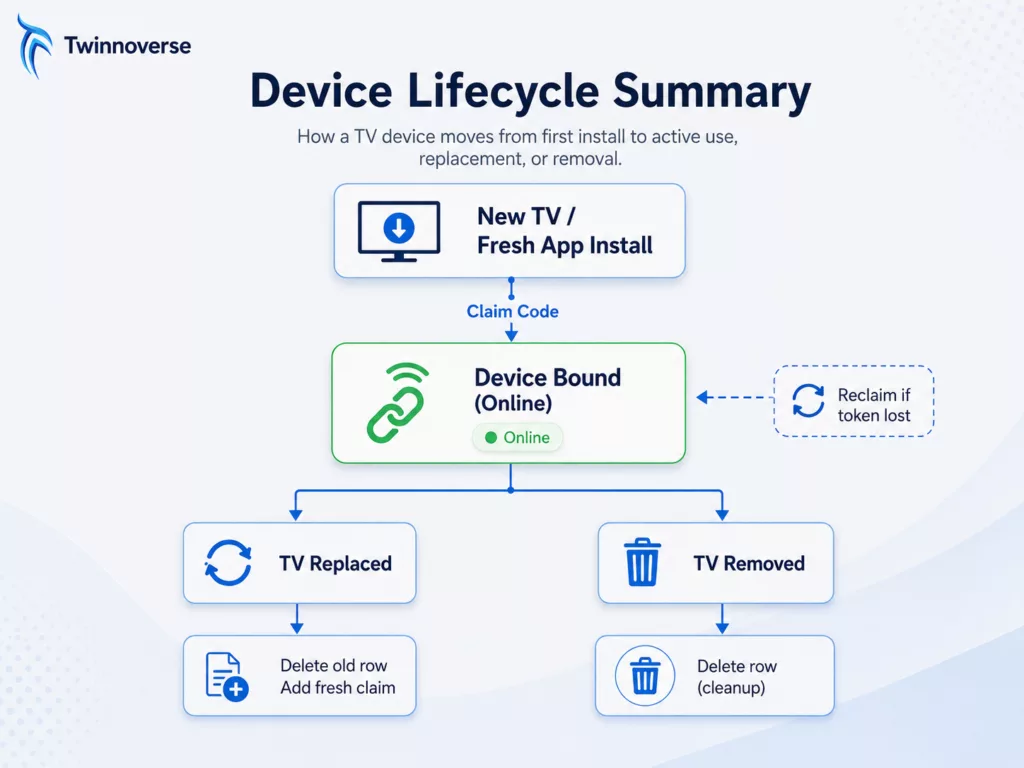
Use Reclaim when:
- The same physical TV lost its connection/token
- The TV app is still installed with its local identity intact
- You need to re-authorize the same device without creating a new row
How it works:
- Click Reclaim on the device
- The same device row is placed back into reclaim approval mode
- The TV shows a claim code again
- Enter that code in the admin reclaim approval flow
- The existing device row is re-used — no new device slot consumed
✏️ Edit #
Modify the device’s playlist assignment, name, and prodline ids.
🗑️ Delete #
Use Delete when:
- The TV app was reinstalled (local identity lost)
- Local storage was cleared on the TV
- The physical TV was replaced
- You need to remove a stale/orphaned device row
⚠️ Important rule: Do NOT use Add Device to reclaim an already-known TV. If the old local identity is gone, Delete the old row first, then use Add Device for a fresh claim.
5. Device Playlist Assignment #
Each device can be assigned to one playlist. The playlist determines:
- Which layouts the device displays
- In what order
- For how long each layout stays on screen
Assign or Change a Playlist #
- Open the device’s Edit modal
- Select a playlist from the dropdown
- Save the device picks up changes on its next bootstrap cycle
6. What Is the Runtime Taskbar? #
When a TV is displaying a dashboard, the bottom taskbar (reader overlay) shows:
| Item | Description |
|---|---|
| 🟢 Status dot | Green = healthy, Yellow = warning, Red = error |
| TV name | The device’s configured name |
| Last fetch | Time of last successful data fetch (or “No data source assigned”) |
| App version | Currently installed reader version |
The taskbar is useful for on-site debugging — operators can glance at the TV and confirm it’s working.
7. Device Lifecycle Summary #