
Campaigns let you schedule content to appear on your TVs at specific times — either as a fullscreen takeover or a transparent overlay on top of the normal dashboard.
1. Campaign vs. Playlist What’s the Difference? #
| Playlist | Campaign | |
|---|---|---|
| Purpose | Normal day-to-day content rotation | Special scheduled content |
| When | Always running (continuous loop) | Runs at specific times/dates |
| Priority | Default | Overrides playlist when active |
| Targeting | Per device | All devices or specific ones |
In short: Playlist = what normally plays. Campaign = what interrupts or overlays.
2. Campaign Delivery Modes #
| Mode | Behavior | Use Case |
|---|---|---|
| Fullscreen | Replaces the entire dashboard with the campaign layout | Lunch break announcements, shift handover screens |
| Overlay | Displays ON TOP of the dashboard without stopping playback | Urgent alerts, safety messages, real-time warnings |
3. Creating a Campaign #
- Go to Campaigns in the left navigation
- Click Add Campaign
- Fill in the details:
Basic Settings #
| Field | Description |
|---|---|
| Name | A descriptive name (e.g., “Lunch Announcement”) |
| Delivery Mode | Fullscreen or Overlay |
| Priority | Higher number = higher priority (if multiple campaigns overlap) |
| Status | Draft, Active, Paused, or Archived |
Schedule Settings #
One-Time (Non-Recurring) #
| Field | Description |
|---|---|
| Start Date/Time | When the campaign begins (local time) |
| Duration | How long the campaign lasts (e.g., 30 minutes) |
| Window | The time window within the duration (e.g., last 10 minutes of a 30-min campaign) |
The end time is calculated automatically from start + duration.
Recurring #
| Field | Description |
|---|---|
| Start Date/Time | When the first occurrence starts |
| End Date/Time | When the campaign stops recurring |
| Pattern | Select from presets or customize |
Pattern Presets:
| Preset | Example Meaning |
|---|---|
| Hourly | Every hour at :15 past |
| Daily | Every day at 12:00 |
| Weekly | Every Monday at 07:00 |
| Custom | Full control over interval and days |
Custom Recurrence Options:
- Interval — Every N hours/days/weeks (must be ≥ 1)
- Weekdays — Select which days (Mon–Sun) for weekly patterns
- Rule String — Advanced: edit the RRULE directly (for power users)
Targeting #
| Option | Description |
|---|---|
| All Devices | Campaign runs on every device in your organization |
| Specific Devices | Select individual devices from the list |
Payload (Content) #
For layout campaigns:
- Select which layout to display
- The layout’s widgets, chrome, and data source are all used
4. Quick Message Overlay #
For urgent announcements, use the Quick Message button:
- On the Campaigns page, click Quick Message
- A draft overlay campaign is automatically created with:
- A new
text_blocklayout (with title and body text) - Target: All Devices
- Delivery mode: Overlay
- A new
- The Layout Editor opens immediately so you can edit the message text
- Customize the message → Save
- Go back to Campaigns → activate the campaign
💡 The quick message overlay is perfect for real-time announcements like shift changes, safety reminders, or meeting notifications.
5. Managing Campaigns #
Campaign List #
The Campaigns page shows:
- Filter by status — Active, Draft, Paused, Archived
- Search — Find by campaign name
- Sort — By last update date
- Hide archived — Toggle to keep old campaigns out of view
Edit / Delete #
- Click any campaign to edit its settings
- Use the Delete (archive) button to remove old campaigns
- Archived campaigns can be restored (toggle “Show archived”)
6. How Campaigns Work on the TV #
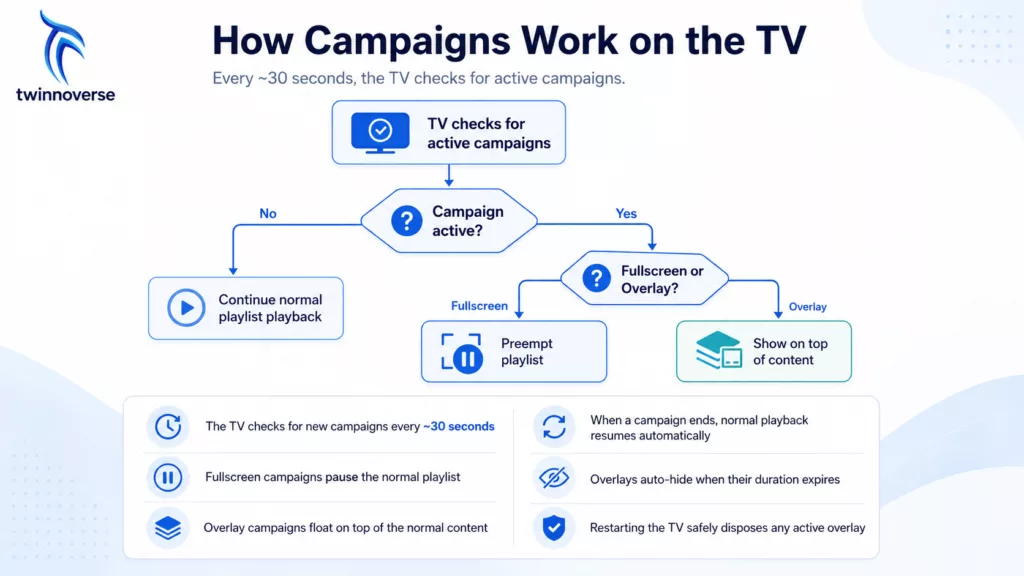
- The TV checks for new campaigns every ~30 seconds
- Fullscreen campaigns pause the normal playlist
- Overlay campaigns float on top of the normal content
- When a campaign ends, normal playback resumes automatically
- Overlays auto-hide when their duration expires
- Restarting the TV safely disposes any active overlay
7. Campaign Use Cases #
| Scenario | Delivery Mode | Recurrence | Example |
|---|---|---|---|
| Lunch break announcement | Fullscreen | Daily at 12:00 | “Cafeteria open 12:00–13:00” |
| Shift handover screen | Fullscreen | Daily at 06:00, 14:00, 22:00 | Shift targets and handover notes |
| Safety alert | Overlay | One-time (immediate) | “⚠️ Safety incident in Zone 3” |
| Weekly KPI review | Fullscreen | Weekly Monday 07:00 | Previous week’s performance |
| Machine down alert | Overlay | Real-time | “🔴 Press Line 4 — maintenance required” |
| End-of-shift countdown | Overlay | Daily last 5 min of shift | “15:55 — Shift ends in 5 minutes” |
8. Best Practices #
Do #
- Use Overlay for urgent alerts (doesn’t interrupt normal data visibility)
- Use Fullscreen for scheduled events (lunch, meetings, shift changes)
- Set appropriate priorities if multiple campaigns might overlap
- Use Quick Message for one-off announcements
- Test campaigns with Device Preview first
Avoid #
- Running too many overlapping campaigns (confusing for viewers)
- Very short overlay durations (<10 seconds — hard to read)
- Fullscreen campaigns during critical production monitoring hours
- Leaving draft campaigns as “Active” when they’re no longer needed


